
The Digital Inbox Reset: A Simple Tracker for Email That Keeps Coming Back
An inbox can become a peculiar kind of household clutter. Nothing is physically spilling over, yet every unanswered message seems to occupy a corner of your mind. A note from your child’s school, a receipt you may need, a client question, a newsletter you meant to read—each one waits in the same list and quietly asks you to remember what it means.
The goal is not to achieve a perfectly empty inbox. That finish line is unrealistic for many people, especially when email is part of work, family logistics, volunteering, or a small business. A better goal is reliable visibility: you should be able to see what needs action, what is waiting on someone else, and what can safely disappear from your attention.
That is where the email inbox tracker method helps. Instead of asking your inbox to act as an archive, to-do list, calendar, and memory all at once, you give each message a clear next step. The method is simple enough for a busy weekday and flexible for different kinds of work. Most importantly, it works with the emails that keep coming back.
Why an inbox reset needs more than a mass delete
A dramatic cleanup can feel satisfying, but it often treats every email as the same problem. A message is stressful when its status is unclear: you do not know whether you owe a response, whether someone else is handling it, or whether you might need the information later.
Replace “unread” with “unresolved”
Unread is a visual status. Unresolved is a decision. Those are not the same thing. A promotional email can be unread and irrelevant. A message you opened yesterday can be unresolved because it needs a thoughtful answer or a document from another person.
During a reset, look at each message and ask one question: What is the next visible action? The answer might be “reply with two dates,” “wait for confirmation,” “save the receipt,” or “delete.” If there is no action, the message does not belong on your mental to-do list.
Give recurring email a home
Some messages are not one-time tasks. They recur because they are part of a process: monthly invoices, project updates, appointment reminders, school notices, or regular requests from a team. If you handle each one from scratch, the inbox keeps recreating the same decision.
A tracker gives repeat messages a simple place in your workflow. Note the sender or topic, the action required, and when you want to look again. You are making the conversations that genuinely need follow-up easier to find.
Build the email inbox tracker method around four decisions
A tracker should be quick to scan. You do not need a complicated database or a dozen labels. Start with four decisions that describe almost every message in your inbox: act, await, reference, or release.
Act: you own the next move
Use this category when a response, decision, or task is yours. Write the action as a verb rather than copying the subject line. “Send revised budget” is more useful than “Budget thread.” If the task will take less than two minutes, do it immediately. If it needs concentration, put it on your regular task list and move the email out of your working view.
Await: someone else has the next move
Waiting is not the same as forgetting. Record who you are waiting for and a sensible check-in date. For example: “Awaiting contractor quote — check Friday.” This prevents you from rereading the thread every morning while still giving you a prompt if the response does not arrive.
Reference: keep the information, not the obligation
Receipts, confirmations, travel details, and useful instructions may deserve to stay accessible without remaining in your active inbox. Archive or file them in a way you can search later. The tracker can hold a short note when the item is easy to lose, such as “Return window ends June 18.”
Release: delete, unsubscribe, or let go
A surprising number of emails are waiting for permission to stop mattering. If you do not need the information, delete it. If a sender repeatedly creates clutter, unsubscribe when appropriate. Releasing a message is a decision, not a failure to be organized.
Try a 15-minute digital inbox reset
The first reset should be small enough that you will actually finish it. Set a timer for 15 minutes and work from the newest messages backward. Do not reorganize your entire email history; build a usable starting point.
Step 1: Choose a narrow starting line
Begin with the last 20 to 30 messages or the messages received since yesterday. A smaller set gives you a clear win. If your inbox is crowded, search for one topic—such as “invoice,” “school,” or a project name—instead of scanning everything.
Step 2: Record only what needs a future glance
For each message, make a short tracker entry only when a future action or reminder is useful. A practical line might read:
- Sender/topic:Maya — summer photos
- Status:Await
- Next action:Review shared folder after she uploads
- Check date:Tuesday
This takes less time than repeatedly reopening the thread. Keep the wording compact. The tracker is a cue, not a transcript.
Step 3: Process the easy decisions first
Delete obvious promotions, archive finished conversations, and answer quick questions that require no research. Removing easy items creates room for the emails that deserve judgment. Do not spend your entire reset perfecting labels; movement matters more than visual uniformity.
Step 4: End with a clean next session
Before the timer ends, look at the remaining active messages and choose your next inbox appointment. It might be tomorrow at 9:15 a.m. or after dinner. A defined return time makes it easier to close email without the feeling that you should keep checking “just in case.”
Make the tracker work with your actual week
A tracker becomes useful when it fits the rhythm of your life. The right cadence depends on how much email you receive and how quickly messages become stale.
Use a daily capture and a weekly review
During the day, capture only the messages that need a later decision. You can process the rest in batches. Once a week, review the tracker and ask whether each entry is still accurate. Update dates, send a follow-up, complete the task, or remove the line.
A weekly review is especially helpful for “await” items. If someone has not replied by the check-in date, send a courteous nudge or decide that the matter no longer needs your attention. The point is to stop carrying an invisible list of possibilities.
Create response windows, not constant access
If email is not your job, try two or three response windows instead of open-ended checking. A morning scan can catch time-sensitive items. A later session can handle longer replies. During the rest of the day, notifications can be muted if your responsibilities allow it.
If you do need to monitor email continuously, keep the tracker focused on messages that require a later action. The method still helps when mail arrives unpredictably.
Match the language to your life
“Awaiting” may feel natural to one person and “on someone else” to another. Use labels that make sense at a glance. You might prefer “reply,” “pause,” “save,” and “clear.” The best email inbox tracker method is the one you can understand when you are tired and in a hurry.

Common mistakes that make trackers harder to use
Do not build a perfect system before testing a simple one. A tracker should remove decisions, not create administrative work.
Mistake 1: tracking every email
If you copy the entire inbox into a tracker, you have made a second inbox. Record only messages with a meaningful next step, a deadline, or a follow-up you might otherwise forget.
Mistake 2: writing vague actions
“Deal with this” is not an action. “Send the signed form” is. Specific verbs reduce the time between seeing an entry and knowing what to do.
Mistake 3: using dates as decoration
A date is useful only if it changes what you will do. Choose a check date based on the situation. A vendor quote may merit a few days; a time-sensitive appointment may need a same-day reminder.
Mistake 4: letting “await” become a parking lot
Waiting entries need an owner and a review date. If you cannot identify either, decide whether you need to ask a question, delegate, or release the item.
Mistake 5: treating the inbox as a measure of your worth
Email volume reflects other people’s schedules, automated systems, and the way modern life communicates. It is not evidence that you are failing. The tracker is a practical support, not a character test.
A simple template you can start today
Whether you use a notebook, a notes app, a spreadsheet, or a digital journal, begin with five columns:
| Email or topic | Status | Next action | Owner | Check date |
| Dentist confirmation | Reference | Save appointment details | Me | Today |
| Project estimate | Await | Check for reply | Vendor | Friday |
| Friend’s invitation | Act | Reply with availability | Me | Wednesday |
Keep entries short enough to update in seconds. Add a category or priority only if you notice a real need. Fewer fields make it easier to see whether the method is helping.
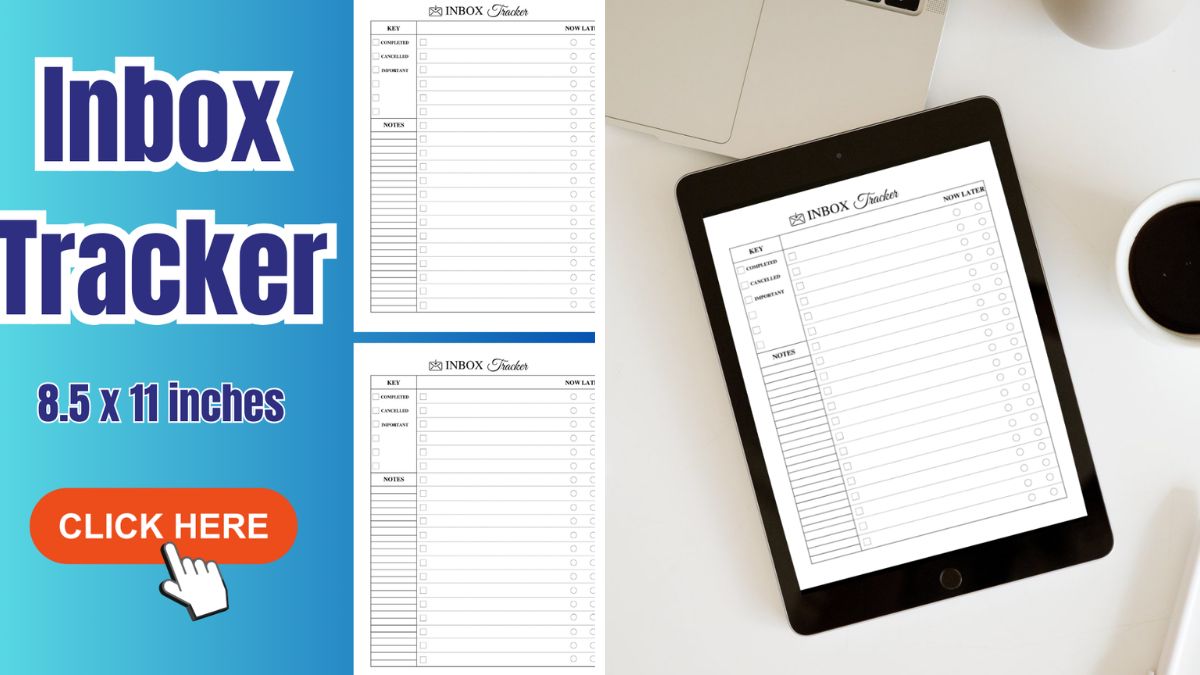
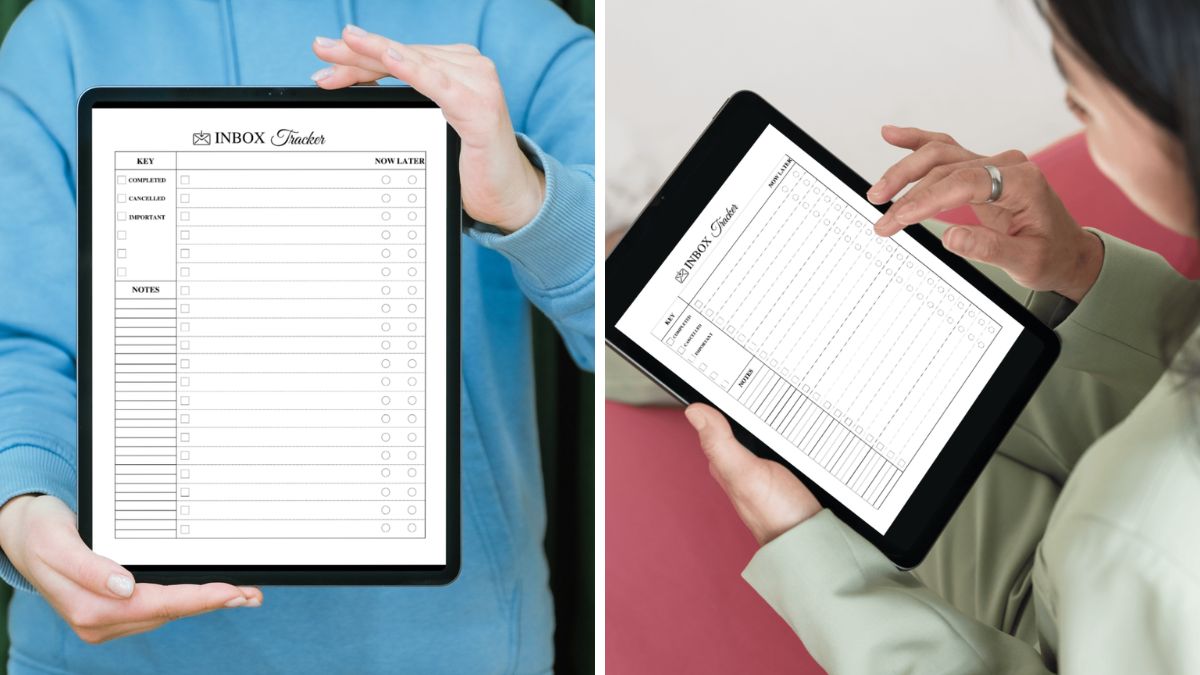
If you prefer a guided place to organize the process, the Inbox Tracker / Editable in Canva is listed as a customizable journal/template for managing email. The product listing describes sections for incoming emails, pending responses, and follow-up reminders, with the option to adjust labels, color-code categories, and change the layout in Canva. The listing says the purchase includes one PDF with a Canva link and notes that it is a digital download; it also includes a specific note about touch-responsive hyperlinks for reMarkable tablets. Review the listing to confirm that its setup suits your devices and workflow before buying. It is a template to support your system, not a promise of a magically empty inbox.
FAQ: making email feel more manageable
How often should I use an email inbox tracker?
Start with a brief daily capture and a weekly review. If your inbox is light, a few minutes every other day may be enough. For active projects, you may need a quick check at the start and end of your workday. The right frequency is the one that keeps follow-ups visible without turning tracking into another obligation.
Should I keep emails in my inbox until I finish the task?
Not necessarily. If an email is acting as a reminder, your tracker can hold the reminder while the email is archived or filed. If the message contains details you need while working, keep it accessible in a designated folder. The decision should depend on retrieval, not on a rule that every unfinished task must remain in the inbox.
What if I miss a check date?
Treat the missed date as information, not a reason to abandon the system. Review the entry, choose a new date, send a follow-up, or remove it. If several dates are repeatedly missed, the action may be too vague or the deadline may belong on a calendar instead. Adjust the system until it reflects what you can realistically maintain.
Make your next inbox session lighter
You do not need a dramatic digital makeover. Start with one small batch, four clear decisions, and a tracker line for anything that needs a future glance. When a message returns, you will know its status, next action, and review date.
Try the 15-minute reset today, then schedule your next review before you close email. A calmer inbox is built through repeatable decisions—not heroic bursts of deletion. If a guided journal/template would make that first step easier, explore the Inbox Tracker / Editable in Canva and choose only the parts that genuinely fit your routine.
About the Author